Oct 27, 2026Guides
Why the Same Ribbon Performs Differently on Different Printers – Ribbon Compatibility Explained
The same ribbon can produce sharp barcodes on one printer and faded prints on another. Learn why printer hardware, settings, and printhead condition cause performance differences.
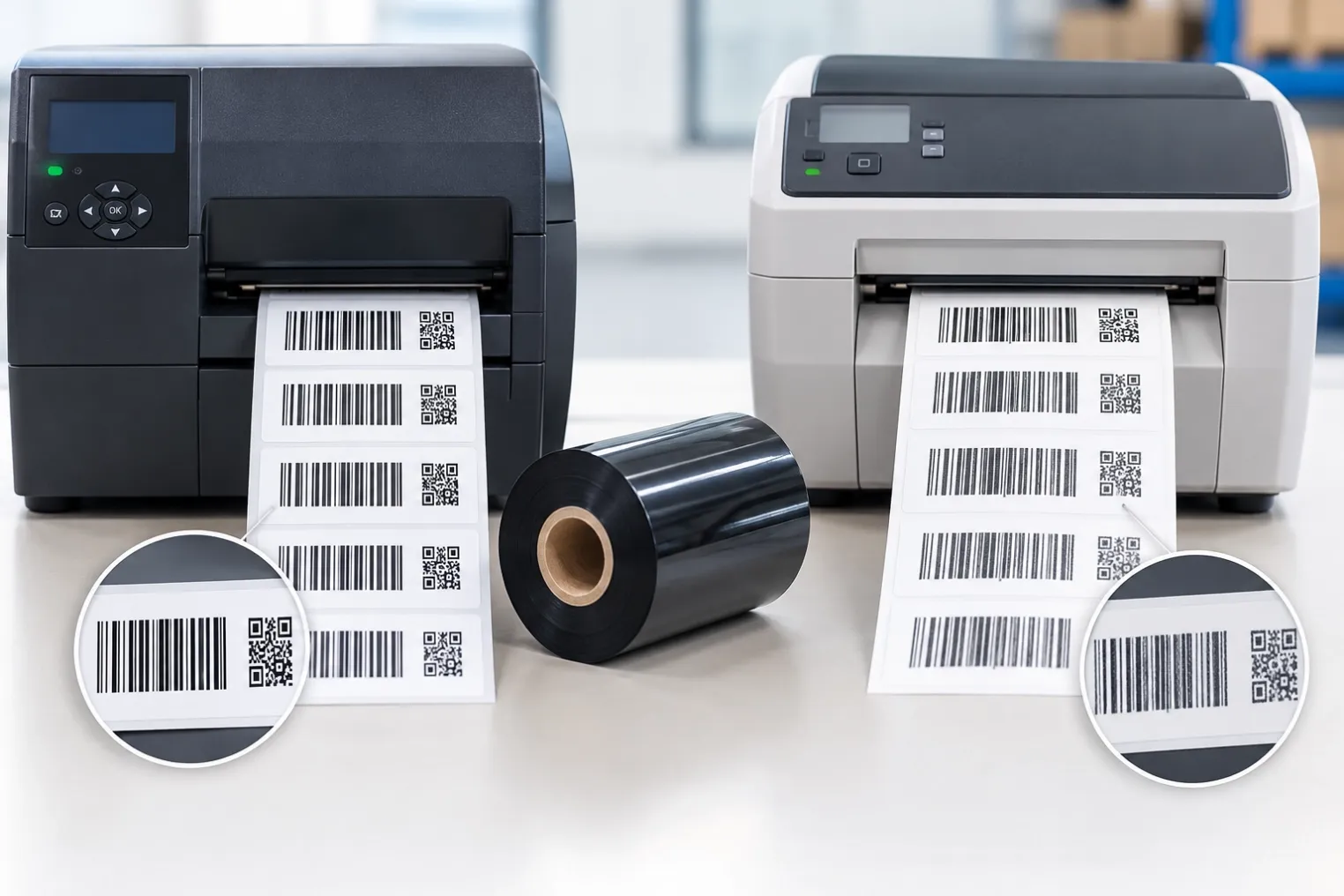
🖨️ You order a roll of resin ribbon. It prints beautifully on your Zebra ZT410 – sharp barcodes, deep black text, no smudging. You load the same ribbon into a Honeywell PD45, and the print comes out faded and patchy.
Same ribbon. Same label material. Completely different results.
This is one of the most confusing experiences in thermal transfer printing. It leads many users to blame the ribbon – when the real cause is the printer itself.
In this guide, I will explain the hardware and settings differences that cause the same ribbon to perform differently across printers, and how to diagnose and resolve compatibility issues.
1. Printhead Energy Output – The Biggest Variable ⚡
The single most important factor in ribbon performance is how much energy the printhead delivers.
Not All Printheads Are Equal
Each printer model has a different printhead design:
Printer Model | Printhead Resistance | Max Energy Output | Typical Darkness Range |
|---|---|---|---|
Zebra ZT410 | ~1,200 ohms | High | 0–30 |
Zebra GK420 | ~1,400 ohms | Medium | 0–30 |
Honeywell PD45 | ~1,000 ohms | Very High | 0–30 |
Sato CL4NX | ~1,100 ohms | High | 0–20 |
TSC Alpha-3R | ~1,600 ohms | Low | 0–15 |
Citizen CL-S700 | ~1,300 ohms | Medium | 0–30 |
The result: A darkness setting of 20 on one printer may deliver significantly more energy than a darkness setting of 20 on another. The numbers are not standardized across brands.
What This Means in Practice
- High-energy printers (Honeywell, Zebra industrial) can run resin ribbon at lower darkness settings
- Low-energy printers (desktop models, TSC Alpha) may struggle to transfer resin ribbon even at maximum darkness
- Mid-range printers fall somewhere in between
If your ribbon prints faintly on a low-energy printer, increasing darkness may not be enough – the printhead simply cannot deliver the required energy.
2. Printhead Resolution – DPI Differences 🔍
Printhead resolution – measured in dots per inch (DPI) – affects how the ribbon transfers ink.
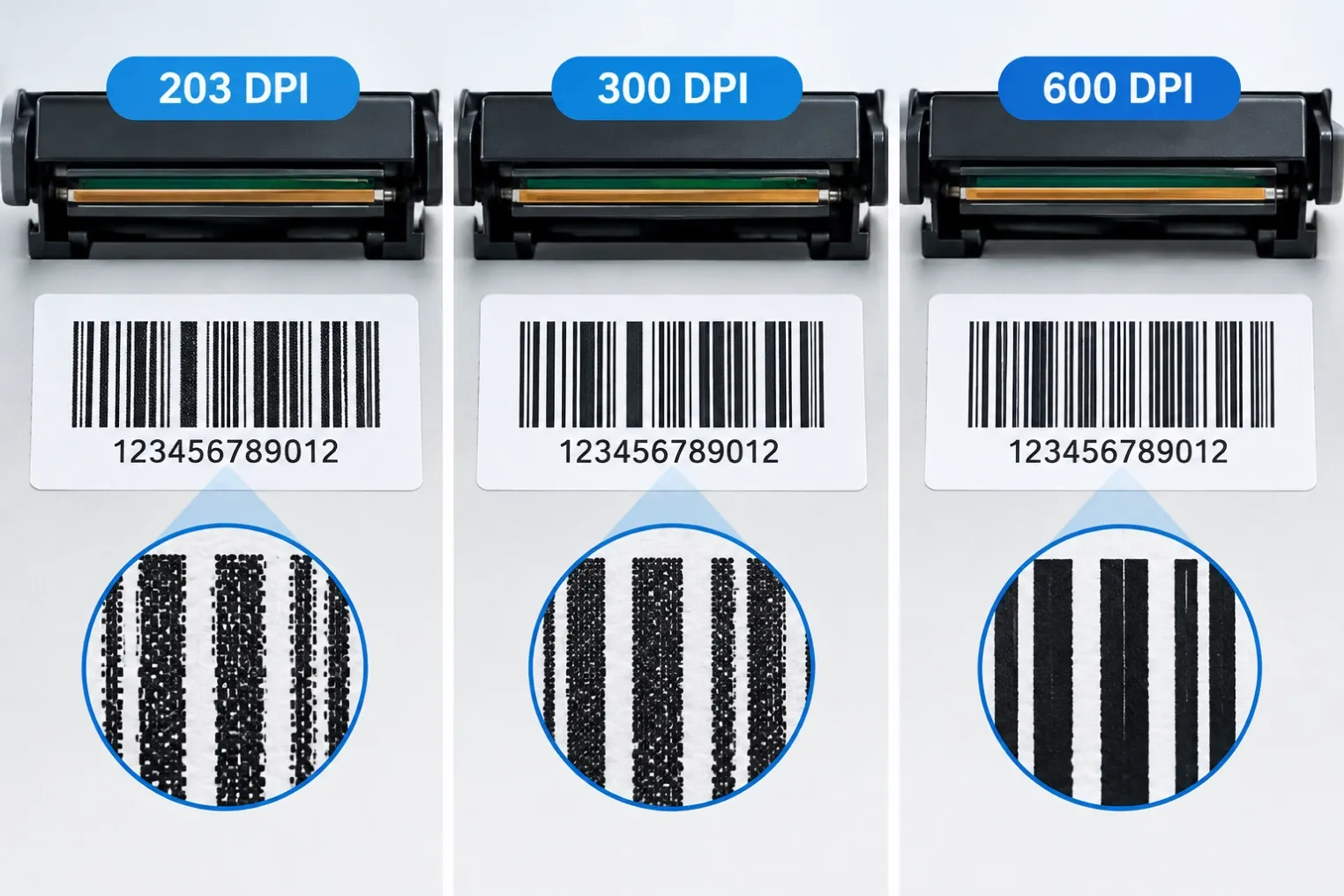
Resolution | Dot Size | Best For |
|---|---|---|
203 DPI | Larger dots | General barcodes, large text |
300 DPI | Smaller dots | Small barcodes, fine text, 2D codes |
600 DPI | Very small dots | High-density 2D codes, tiny labels |
How Resolution Affects Ribbon Performance
- 203 DPI printers – The larger dots deliver more energy per dot, so the ribbon transfers more efficiently. Print appears darker but less detailed.
- 300 DPI printers – The smaller dots deliver less energy per dot. The ribbon may require higher darkness to achieve the same print density.
- 600 DPI printers – The smallest dots require the most precise energy control. Ribbon formulation becomes critical – not all ribbons perform well at 600 DPI.
The result: A ribbon that prints well on a 203 DPI printer may appear faded on a 300 DPI printer at the same darkness setting. You must increase darkness to compensate for the smaller dot size.
For fine barcode printing on 300 DPI printers, choose a ribbon with high print density. See our Resin Ribbon.
3. Printhead Pressure Settings – The Forgotten Variable 🔧
Printhead pressure controls how firmly the printhead presses the ribbon against the label. Too little pressure causes poor transfer. Too much pressure causes ribbon wrinkling.
Pressure Differences Between Printers
Printer Type | Pressure Adjustment | Typical Setting |
|---|---|---|
Industrial printers | Adjustable toggles or dial | Medium to high |
Desktop printers | Fixed or limited adjustment | Factory preset |
High-volume printers | Dual pressure toggles | Adjustable per side |
How Pressure Affects Ribbon Performance
- Insufficient pressure – The ribbon does not make full contact with the label. Print appears faded or patchy.
- Excessive pressure – The ribbon wrinkles or stretches. Print appears smudged or distorted.
- Uneven pressure – One side prints darker than the other.
The result: A ribbon that prints perfectly on a printer with adjustable pressure may print poorly on a printer with fixed pressure that is set too low or too high for that ribbon type.
If you experience uneven print quality, check your printer's pressure settings. For maintenance tips, see our printhead cleaning and care guide.
4. Print Speed Capabilities – Dwell Time Differences ⏱️
Print speed determines how long the ribbon stays in contact with the printhead. Faster speed = less dwell time = less energy transferred.
Speed Ranges by Printer Type
Printer Type | Typical Speed Range | Best Ribbon Match |
|---|---|---|
Desktop printers | 2–4 IPS | Wax, wax/resin |
Mid-range industrial | 4–8 IPS | Wax/resin, resin |
High-speed industrial | 8–14 IPS | Resin, high-speed wax/resin |
TTO printers | 20–55 IPS | Near-edge ribbon only |
How Speed Affects Ribbon Performance
- Slow printers – More dwell time, better ink transfer. Can use lower darkness settings.
- Fast printers – Less dwell time, requires higher energy or more sensitive ribbon.
- Very fast printers – Standard ribbons cannot transfer properly. Requires near-edge or high-speed formulations.
The result: A ribbon that prints well on a slow desktop printer may fail on a high-speed industrial printer at the same darkness setting. Speed and darkness must be balanced.
5. Printhead Type – Flat-Head vs Near-Edge 🔄
This is a fundamental compatibility issue that many users overlook.
Printhead Type | Ribbon Required | Common Printers |
|---|---|---|
Flat-head (edge) | Standard ribbons (Wax, Wax/Resin, Resin) | Zebra, Honeywell, Sato, TSC, Citizen |
Near-edge (corner-edge) | Near-edge ribbons only | Markem-Imaje, Videojet, Domino, Toshiba TTO |
Why This Matters
A flat-head ribbon will not work on a near-edge printer. The ink release chemistry is different. The ribbon peels away instantly on a near-edge printer, so standard ink does not have time to transfer.
Similarly, a near-edge ribbon on a flat-head printer may release ink too quickly, causing poor adhesion.
The result: A ribbon that works perfectly on a Zebra flat-head printer will produce blank or faint prints on a Markem-Imaje near-edge printer. The ribbons are not interchangeable.
6. Ribbon Tension and Winding Systems 🎗️
Printers use different methods to maintain ribbon tension:
Tension System | How It Works | Effect on Ribbon |
|---|---|---|
Mechanical clutch | Spring-loaded tension | Consistent but requires adjustment |
Electronic tension | Motor-controlled | Precise, adapts to ribbon diameter |
Friction brake | Simple friction pad | Less consistent, may vary with ribbon width |
How Tension Affects Performance
- Too much tension – Ribbon stretches or breaks
- Too little tension – Ribbon wrinkles or slips
- Inconsistent tension – Print density varies across the label
The result: A ribbon that performs well on a printer with electronic tension control may wrinkle on a printer with a simple friction brake. The tension system must match the ribbon's physical properties.
If you experience ribbon wrinkling, check your printer's tension settings. For technical support, contact us via our contact page.
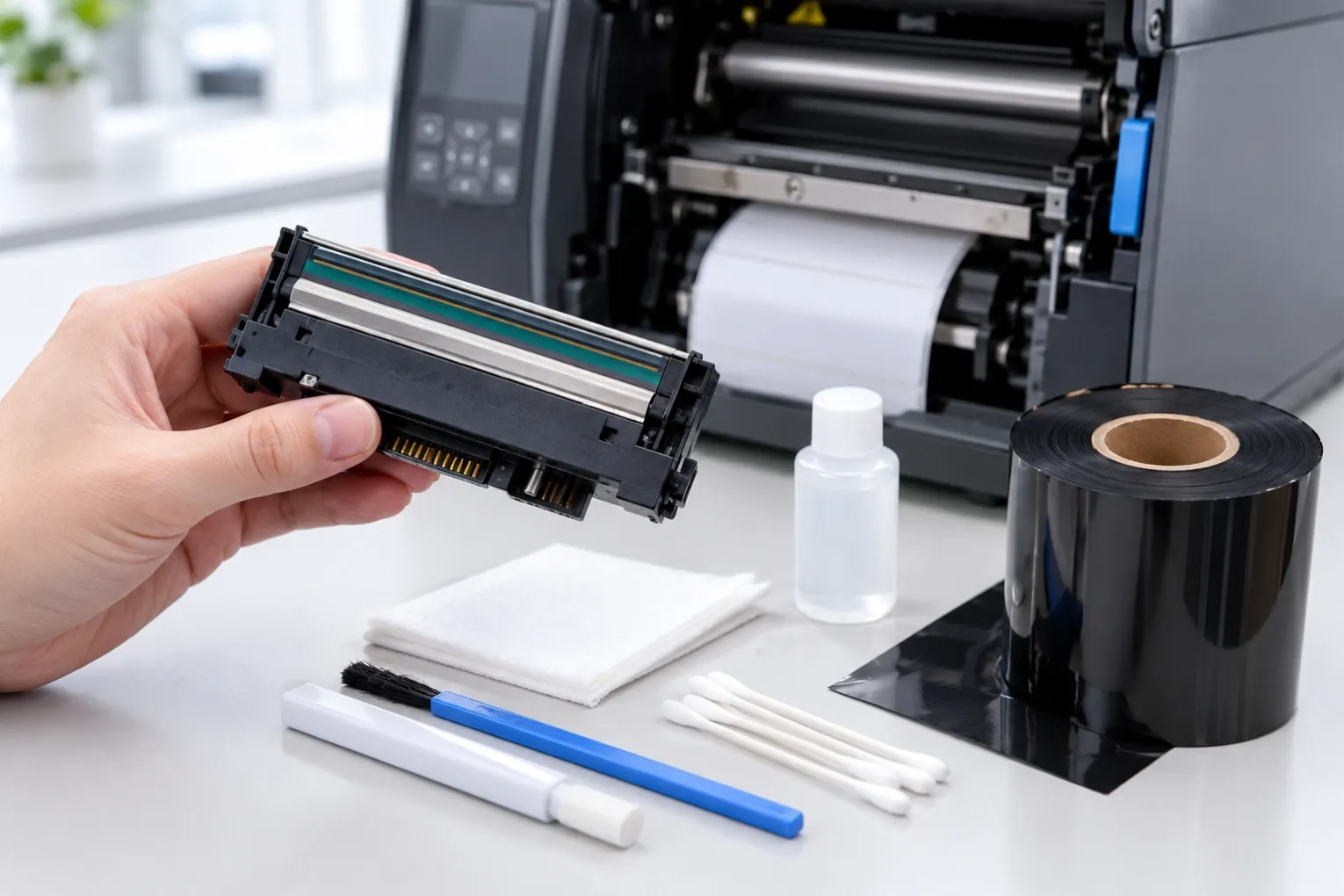
7. Printhead Condition and Age 🔧
A worn printhead will not deliver energy evenly, regardless of ribbon quality.
Printhead Condition | Effect on Ribbon Performance |
|---|---|
New printhead | Full energy output, even transfer |
Moderately worn | Slightly uneven print, may need higher darkness |
Heavily worn | White lines, faded areas, poor transfer |
Damaged (scratched) | Permanent white lines, unusable |
The result: A ribbon that printed perfectly six months ago may now appear faded – not because the ribbon changed, but because the printhead has worn. Before blaming the ribbon, check the printhead condition.
8. Firmware and Driver Differences 💻
Printer firmware and drivers can affect how darkness settings are interpreted.
Factor | Effect |
|---|---|
Firmware version | May change energy delivery curves |
Driver version | May alter darkness scaling |
Emulation mode | Different command sets interpret darkness differently |
Printer language | ZPL, EPL, DPL – each has different darkness scales |
The result: A darkness setting of 20 in ZPL may not equal a darkness setting of 20 in DPL. When switching printers, always recalibrate your settings.
9. How to Diagnose Ribbon Performance Issues 🔍
When a ribbon performs differently on two printers, follow this diagnostic process:
Step 1: Verify Ribbon Type Compatibility
- Is the ribbon the correct type for the printhead? (Flat-head vs near-edge)
- Is the ribbon width correct for the label? (Must be wider than the label)
- Is the ribbon coating side correct? (Inside vs outside)
Step 2: Check Printhead Condition
- Clean the printhead thoroughly
- Inspect for scratches, wear lines, or damage
- Compare with a known-good printhead if possible
Step 3: Compare Settings
- Darkness setting (may not be equivalent across brands)
- Print speed (IPS)
- Printhead pressure
- Ribbon tension
Step 4: Test with a Known-Good Ribbon
- Print the same label with a ribbon known to work on that printer
- If it prints well, the issue is the ribbon
- If it prints poorly, the issue is the printer
Step 5: Validate with a Barcode Verifier
- Do not rely on visual inspection
- Use a verifier to measure ANSI grade, bar width, and contrast
10. Summary & Next Steps 🎯
The same ribbon can perform differently on different printers because of:
- Printhead energy output – not standardized across brands
- Printhead resolution – 203, 300, or 600 DPI
- Printhead pressure – adjustable or fixed
- Print speed capabilities – dwell time differences
- Printhead type – flat-head vs near-edge
- Ribbon tension systems – mechanical vs electronic
- Printhead condition – new vs worn
- Firmware and driver differences – darkness scaling
The key takeaway: When a ribbon performs poorly on one printer but well on another, the ribbon is not necessarily defective. The printer hardware, settings, or condition may be the cause.
Need help diagnosing a ribbon compatibility issue? Send us your printer model, ribbon type, label material, and a photo of the print quality. We will help you identify the cause and recommend the right ribbon for your specific printer.